
Updated September 28, 2026 to cover Claude's new sharing options and email invitations.
You can now share a Claude Design with clients and other people outside your organization, straight from Claude. Send them a link or invite them by email.
They'll still need a Claude account to open it. If your client doesn't use Claude, they'll have to sign up before they can look at your work.
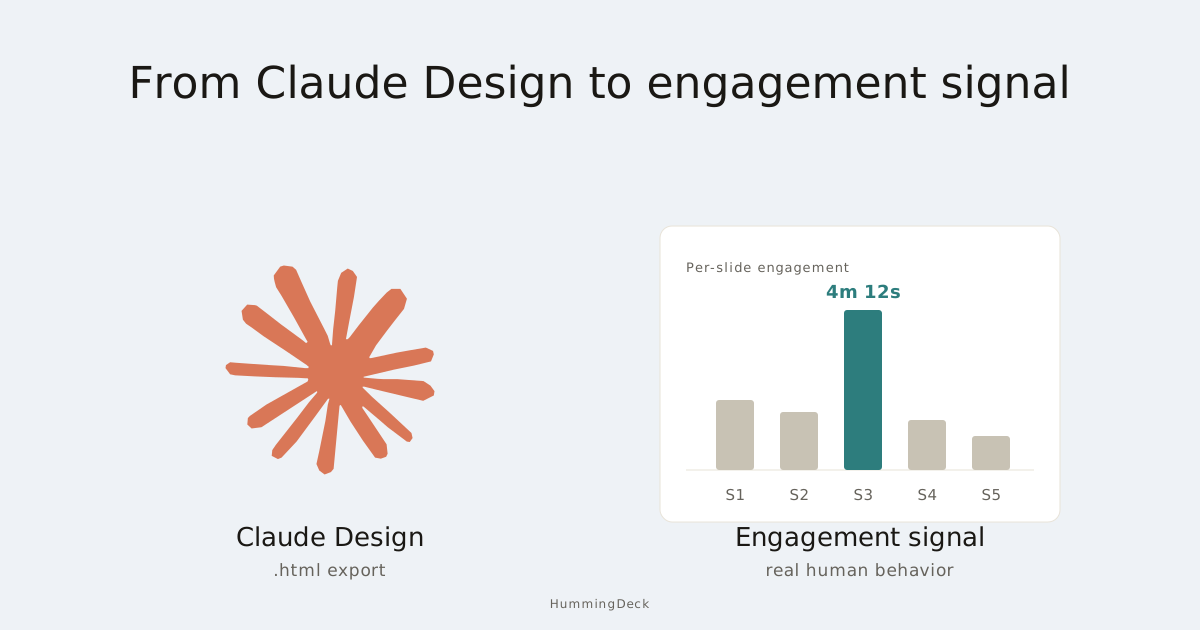
If you'd rather skip that request, export the design and upload it to a service that lets people read without signing up. A tracked link will also show you when they open it and how long they spend reading.
How to share a Claude Design with others
If the person you're sending to already uses Claude:
- Open your design in Claude on the web or desktop and click Share.
- Choose Anyone with the link, if it's available, or invite the person by email.
- Copy the link and send it. Claude emails an invitation to anyone you invited.
On Pro and Max, you can share by link straight away. On Team and Enterprise, your organization owner needs to allow external sharing, either for everyone or for that design. If you can't use that option, ask them to check the sharing settings.
To share with just a few people, invite them by email. Choose Only people invited on Team or Enterprise, or Only you on Pro or Max.
Email invitations are in beta on all four paid plans. You can invite up to 50 people outside your organization to each design and choose Can view, Commenter, or Can edit for each person. You can change their access or remove them later.
If your client doesn't have a Claude account, they'll have to create one with the address you invited before they can open the design. Claude doesn't tell you whether they already have one.
If they didn't get your invitation because they had no account yet, Anthropic's advice is to have them create one, then remove the invitation and invite them again. Invitation emails are in English.
On Team and Enterprise, your owner controls email invitations separately from link sharing. They're on by default on Team and off on Enterprise.
To share the project's knowledge and instructions too, see how to share a Claude project. Projects and designs have different sharing rules.
When your recipient doesn't use Claude
HummingDeck is our product. You upload your file and get a link your client can open without an account. You can then see when they visit and how long they spend reading.
| What you need | Claude Design | HummingDeck |
|---|---|---|
| Send it outside your organization | Yes, if sharing settings allow it | Yes |
| Choose who can open it | Yes, email invitations in beta | Yes, restricted links on Pro and Business |
| Let someone read without creating an account | They need a Claude account | Yes |
| Remove someone's access | Yes, remove their invitation | Yes, remove their allowed email address |
| See when your client opened it and how long they stayed | No reports described in the docs | Yes |
| See time spent on each page or section | No reports described in the docs | Yes, on Starter and above; HTML detail depends on the file |
In Claude, removing someone only keeps them out if the design isn't also shared with Anyone with the link. In HummingDeck, removing their email address stops them opening that restricted link again. It doesn't erase anything they've already opened or downloaded.
Claude can show which teammates have a design open. Its reports for standalone Claude Design count active users, while the Admin API counts artifacts created.
Anthropic's docs don't describe a report showing when an outside client opened your design or how long they read it. That's what you'd use a tracked link to find out.
What about the Publish button?
Claude's Publish button lets people open an artifact without signing up, but only a legacy one made in a chat before September 16, 2026. Anything you make now, including designs and presentations from Claude Design or Claude Slides, needs a Claude account to open.
If you just need a public webpage, see the single-file HTML hosting options. To control who can open your design and see their visits, follow the steps below.
Step 1: Export your design or presentation
In Claude Design, click Export in the upper right and choose Export as standalone HTML. You can also choose PDF for a document. Both options are in Anthropic's export guide.
For presentations, use Claude Slides and export to PowerPoint or PDF. Anthropic's artifacts guide and admin guide cover those exports.
Save the file. If it's HTML, open it in your browser and try the links and buttons to check that they work outside Claude.
Step 2: Upload to HummingDeck
Upload your .html, .pdf, or .pptx file to HummingDeck. Once it's ready, open the preview and check the layout, the buttons, and the page or section count.
Links to other sites in an HTML file don't open inside the preview. The browser check from step 1 covers those.
If your HTML needs more preparation, see how to share an HTML file with a client.
Step 3: Choose who can open the link
Create a share link from the document. On Pro or Business, set Access to Restricted and add the people who should be able to open it under Allowed emails.
When your client opens the link, they enter their email address. If it's on your list, HummingDeck emails them an access link, and they're in without creating an account.
On Starter and above, you can set an expiration date and choose whether people can download PDF or PowerPoint files. See pricing for plan details.
For a link anyone can open, leave Access set to Anyone with the link.
Step 4: Send the link and review visits
Email the link, then check your dashboard for visits. On Starter and above, you can see time spent on each PDF page or PowerPoint slide.
For HTML, the detail depends on which sections HummingDeck can detect. If it treats the design as one page, you'll see time for that page as a whole.
If a client keeps returning to the pricing section, you can have the cost breakdown ready for your next call.
More unique viewers can mean someone passed the link along. But one person using a second browser or device can also count as another viewer. See how to read deck analytics for more on interpreting visits and filtering bots.
FAQ
Can I share Claude Design with someone outside my Anthropic organization?
Yes. On Pro or Max, choose 'Anyone with the link' or invite them by email. On Team and Enterprise, an owner has to allow link sharing outside your organization. Either way, every viewer needs a Claude account, so to reach someone who won't sign up, export the file and share it through another service.
Can Pro or Max plan users share Claude Design?
Yes. You can send a link or invite someone by email on either plan. They'll still need a Claude account to open the design. If you don't want to ask them to sign up, export it and share it through a service such as HummingDeck.
How do I restrict who can view a Claude Design share link?
Invite people by email and choose Can view, Commenter, or Can edit. Set sharing to 'Only people invited' on Team or Enterprise, or 'Only you' on Pro or Max. They'll need Claude accounts with the email addresses you invited. HummingDeck's Pro and Business plans let you choose allowed email addresses and verify access by email, without asking people to create an account.
Can I see who viewed my Claude Design?
Claude shows who has access and which teammates have a design open right now. Its docs don't describe reports showing when outside clients visited or how long they read. To see those visits, export the file and share it through a service with reader analytics, such as HummingDeck.
What's the best way to send a Claude Design to a client or investor?
Export the design from Claude as standalone HTML or PDF, upload it to a tracked-sharing platform like HummingDeck, and send your client the share link. On Pro or Business, restrict the link to their email address so you know who opened it. You'll see when it was opened and how many unique viewers it had, plus time spent on each page or section on Starter and above.
Do recipients need a Claude account to open a shared design?
Yes, whether you send a link or invite them by email. Claude's Publish option works without an account, but only for chat artifacts made before September 16, 2026, not for Claude Design or Claude Slides. If your client won't sign up, export the file and share it through another service.
Related:
- How to Share a Claude Project: sharing project knowledge, instructions, and chats.
- Host a Single HTML File: 8 Tools Compared: hosting options for an exported design.
- How to Share an HTML File with a Client: check your file before sending it.
- How to Share a Presentation Online: sharing decks made in PowerPoint, Google Slides, or other tools.
- Why Your Deck Analytics Are Wrong: interpreting visits and filtering automated activity.